CNC Software
I write software for a living, so it should come as no surprise that I've written some tools for use with my new CNC hobby. These are free for personal use. If you have any issues with the software, feel free to contact me at mail(AT)jasondorie.com.
These programs are Windows executables, and require the Microsoft .NET framework, V3.5. If you have difficulty running them, try installing the framework from here: http://www.microsoft.com/download/en/details.aspx?id=21
Halftoner
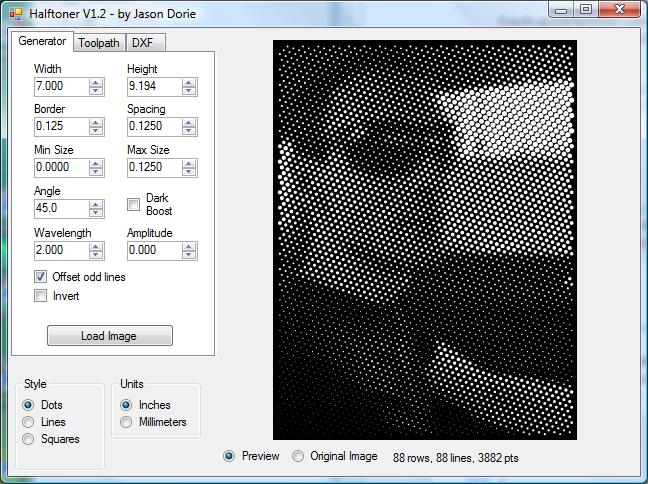
Halftoner was inspired by a post I saw on Hack-a-day. A Finnish guy who goes by "MetalFusion" created a program to convert images into halftone dots for cutting on his CNC machine. (His page is here: http://www.students.tut.fi/~syvajar3/)
I took the idea from him, but the code is entirely my own.
The program has options to set the size of the work piece, the dot spacing and size, black-on-white or white-on-black, angled dots, and so on. It will output a DXF of the generated dot pattern, or produce GCode. The program can also generate varying width lines.
Version 1.7 adds the ability to disable line numbers in generated GCode output, has a mode to generate GCode compatible with GRBL (primarily for use with Easel), and includes code to optimize the generated GCode in Lines / Circles modes to be smaller if possible.
Version 1.6 adds a few new features. First, when using "offset odd lines", the spacing of dots is adjusted slightly to make the distance between circles consistent, even with the offset. I've added a new circle style, and added controls to move the center of the pattern for squares and circles modes. I've also added image adjustment for brightness and contrast - check out the 'Adjust' tab.
Version 1.5 corrects the issue of commas in the GCode output for non-North American users.
Version 1.4 corrects a problem in the GCode output for metric users, and adds the ability to use images with non-square aspect ratios.
Version 1.3 uses 2 instead of 4 decimals of precision in the GCode output in mm mode, as some machines didn't like 4. It also adds two-pass cuts as an option for lines mode, and adds the ability to export a DXF for lines mode. The generated DXF will need to have the segments joined to cut it properly, but the output is very precise and will produce optimal V-Carve paths.
Version 1.2 adds the ability to choose between inches and mm for all measurements, and all settings are remembered when the app is closed. I have also added small help popups above most of the controls, and added a "Load Image" button.
Download
older Halftoner V1.6
Download
older Halftoner V1.5
Download
older Halftoner V1.4
Download older
Halftoner V1.3
Download older
Halftoner V1.2
Download older
Halftoner V1.1
Reactor
A user on the JoesCNC forums said that he'd been looking for something to produce a very specific pattern from images, but he didn't know what it was called. He linked to a gallery here : http://www.interlam-design.com/Mirage_ProductList.cfm
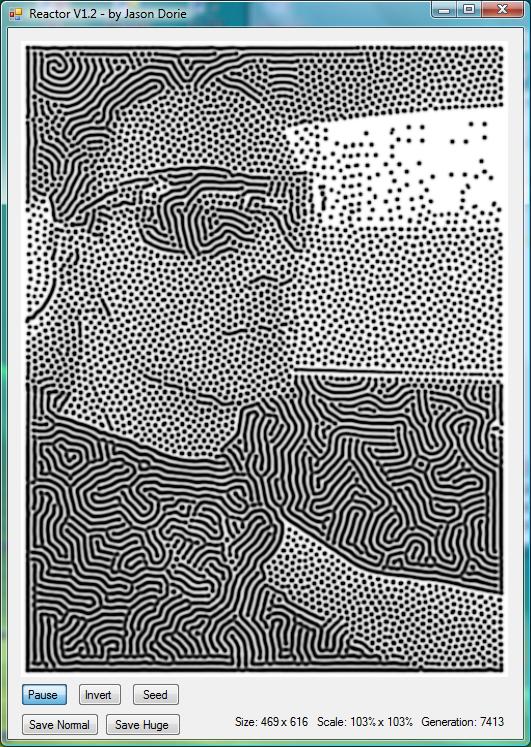
I recognized the pattern as the result of a reaction/diffusion system and set about writing a program to generate something similar. It turned out nicely - an example is shown below:
This program is pretty minimal - Drop an image on it, let it go until you're happy, then save the resulting picture. The images are "grown", and as such it can take a while, especially with a large image. I suggest starting with something small, around 500 pixels square, until you get a feel for it. Small images typically run in real-time, and you can paint on them with the mouse and watch them grow.
It's also worth mentioning that the light areas on an image take the longest to fill in. Basically dark is "food", whereas white is the absence of it. An image with large light areas will take a while to fill in (5000 to 10000 generations). You can help it along by hitting the "Seed" button to dump "food" on the image.
Version 1.2 allows you to negate the image (making the dots are white instead of black) and it can save a high quality up-scaled version of the result, making it easier to vector trace.
Want a piece done?
If you're interested in getting a custom physical piece like the one below contact me via mail(AT)jasondorie.com. Click the image for a larger version.
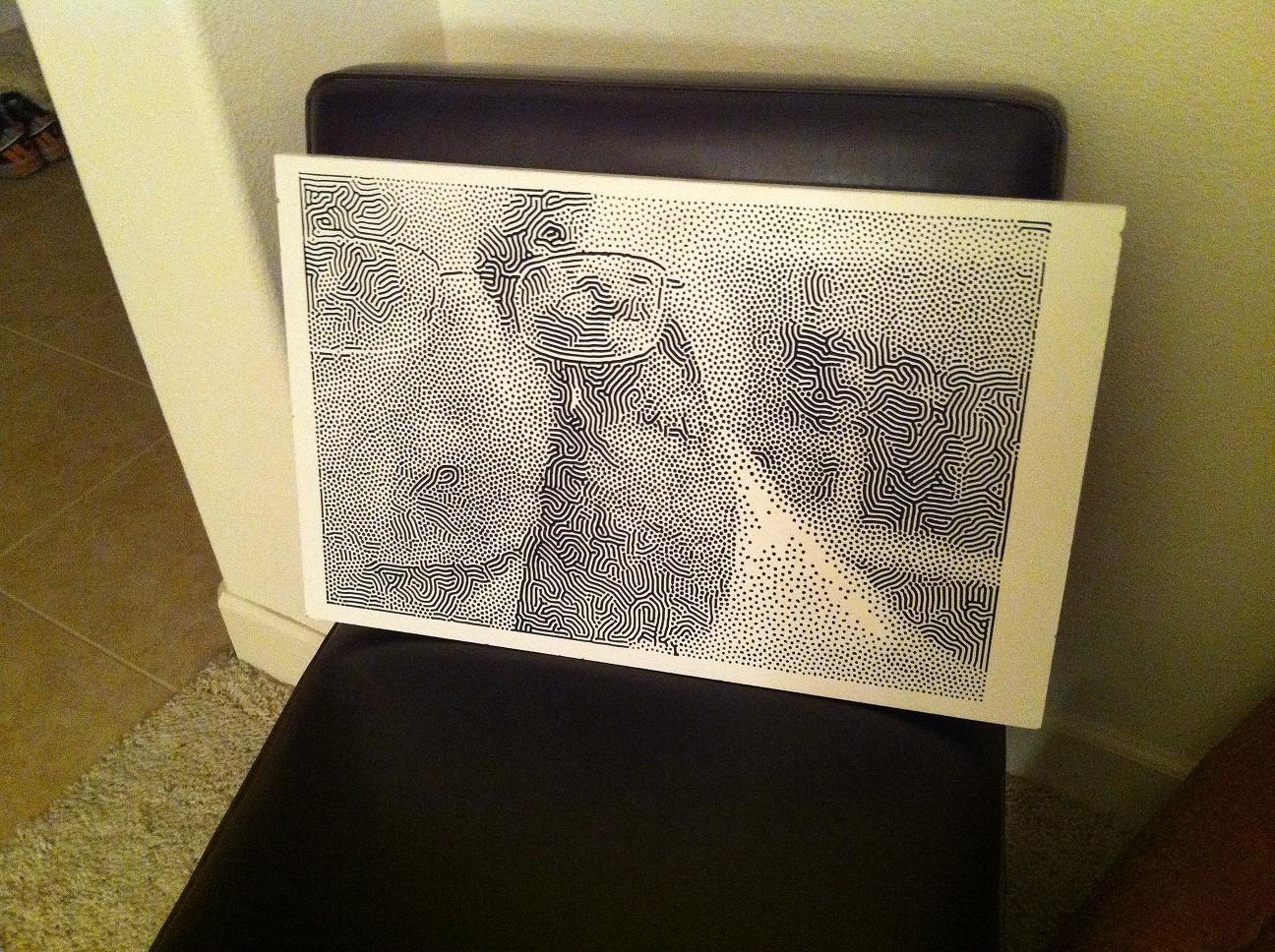
The process is shown in the video below.